
Git Branching Explained Through a Real Team Workflow
Working alone with Git is straightforward. You make changes, commit them and push. But the moment a second developer joins the same codebase, things change. Two people can edit the same file on the same day, push to the same branch, and overwrite each other's work without realizing it.
The fix isn't "be more careful". The fix is a workflow, and at the center of almost every professional software team's workflow is Git branching.
In this guide, we'll walk through a realistic team workflow on a small online store project: two developers, two features, one shared codebase. Every command and output below comes from an actual run of this workflow, including a real merge conflict.
By the end, you'll know how to:
Start a project or join an existing one
Create and switch between branches
Commit and push your work
Open, review and merge pull requests
Reproduce and resolve a merge conflict
Choose between merge and rebase
First, a quick mental model: commits and branches
Before touching the terminal, two ideas make everything else easier.
A commit is a snapshot. Every time you commit, Git saves the exact state of your project at that moment, with a message explaining what changed. Your project's history is a chain of these snapshots.
A branch is a movable label pointing at a commit. When you create a branch, you're not copying the project. You're starting a separate line of work from that point. You can commit freely on your branch without touching anyone else's work.
main is the shared, stable version. It's what gets deployed. Nobody should be experimenting on it directly.
Here's what a typical team workflow looks like as a branch diagram:
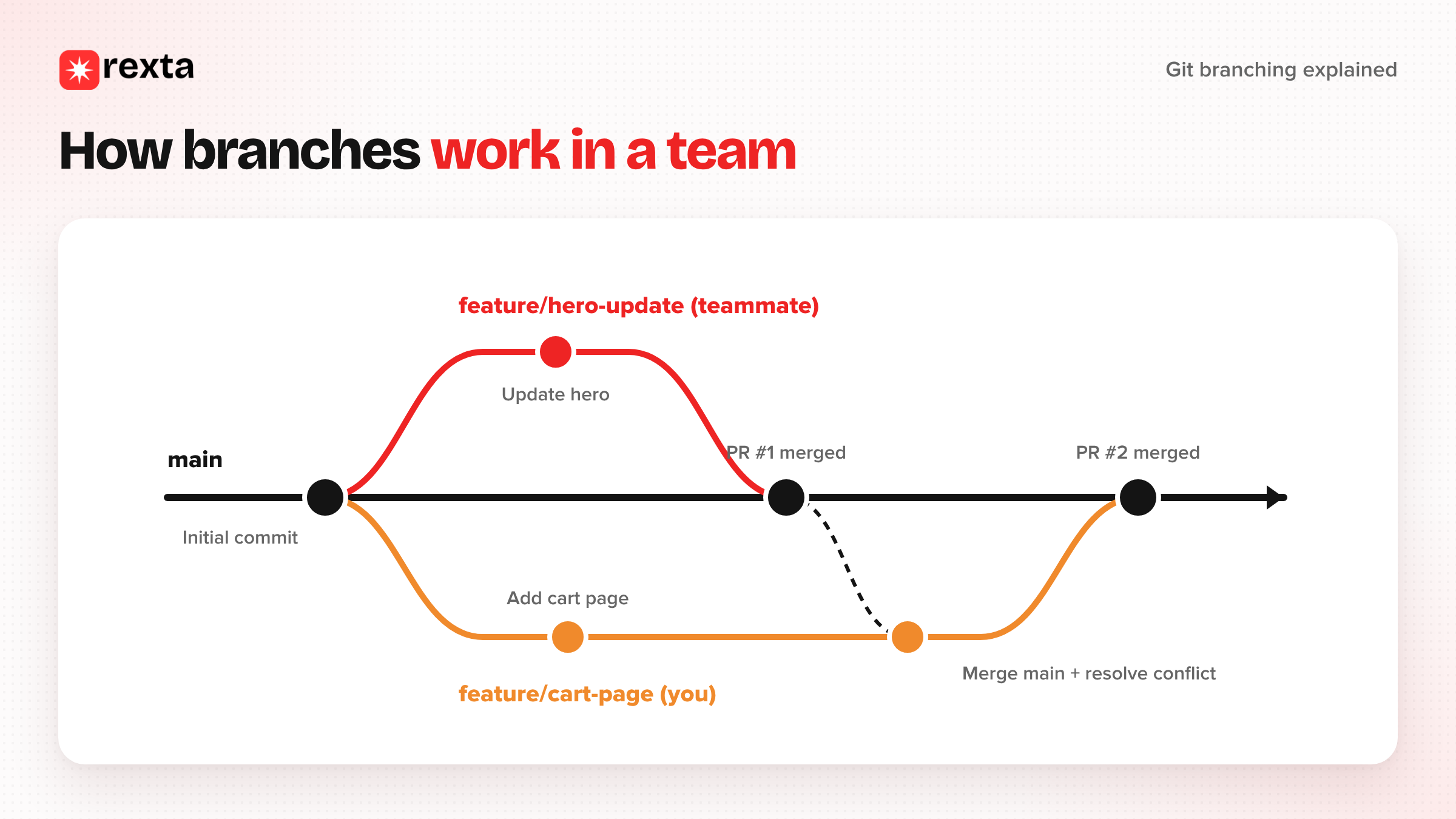
One developer works on feature/hero-update to refresh the homepage. Another works on feature/cart-page to build a shopping cart. Both start from the same point on main, work independently, and merge back in once their work has been reviewed.
And this is the workflow the team follows every time:
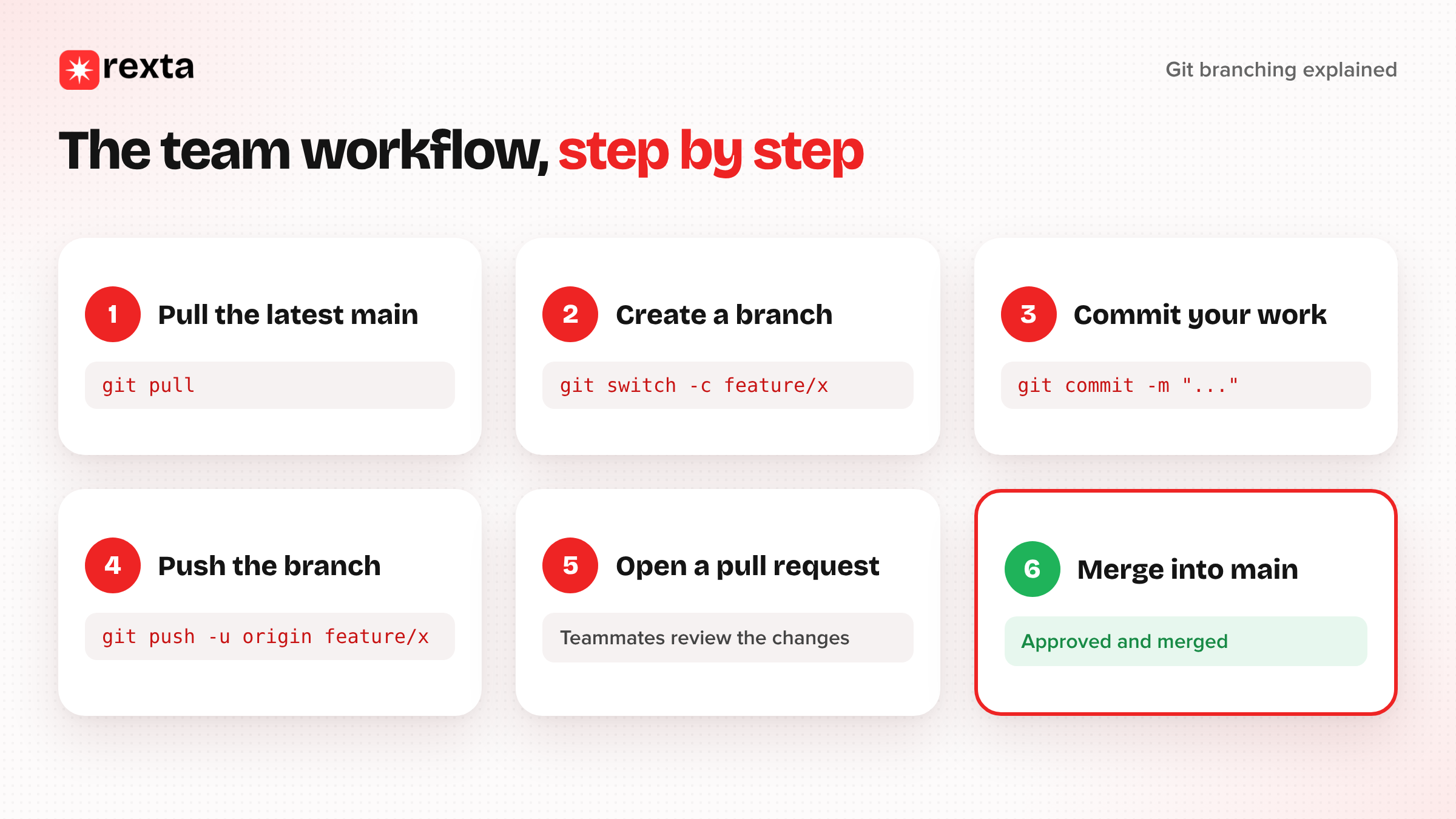
Let's walk through it.
Step 1: Initialize or clone the repository
Every Git project starts in one of two ways.
Starting a new project: git init
If you're creating a project from scratch, run this inside your project folder:
git init
git add .
git commit -m "Initial commit: homepage and README"
git init turns the folder into a Git repository. git add . stages every file, and git commit saves the first snapshot.
Then connect it to your team's GitHub repository and push it up:
git remote add origin https://github.com/your-team/online-store.git
git push -u origin main
Joining an existing project: git clone
If the project already exists, you join it by cloning:
git clone https://github.com/your-team/online-store.git
Cloning into 'online-store'...
done.
You now have a full copy of the project, including its entire history, on your machine.
New to Git? Install it from git-scm.com, then set your name and email once with
git config --global user.name "Your Name"andgit config --global user.email "you@example.com". Every commit you make will carry these details.
Step 2: Create a feature branch
Say your task is to build the cart page. Before writing a single line of code, create a branch for it.
First, check which branches exist:
git branch
* main
The * shows the branch you're currently on. Now create and switch to a new branch in one command:
git switch -c feature/cart-page
Switched to a new branch 'feature/cart-page'
git branch
* feature/cart-page
  main
You're now working on your own line of development. Nothing you do here affects main or your teammates' work.
Meanwhile, a teammate working on the homepage does the same:
git switch -c feature/hero-update
Name branches clearly
A good branch name tells the team what's happening without opening the code. Common patterns:
Prefix | Use it for | Example |
|---|---|---|
| New functionality |
|
| Bug fixes |
|
| Maintenance and tooling |
|
| Documentation |
|
git switchorgit checkout? You'll see both in tutorials.git checkoutis older and does several jobs.git switchwas introduced specifically for changing branches, which makes it clearer and safer to use.
Step 3: Switch between branches
Switching is just as simple:
git switch main
Switched to branch 'main'
Your branch is up to date with 'origin/main'.
git switch feature/cart-page
Switched to branch 'feature/cart-page'
When you switch branches, Git updates the files in your folder to match that branch. If you have uncommitted changes, Git may stop you from switching so you don't lose work. You can either commit first, or set the changes aside temporarily with git stash and bring them back later with git stash pop.
Step 4: Make and commit changes
On the cart branch, you create cart.html and update the homepage button to say "View Cart". Before committing, check what's changed:
git status
On branch feature/cart-page
Changes not staged for commit:
  (use "git add <file>..." to update what will be committed)
  (use "git restore <file>..." to discard changes in working directory)
	modified:   index.html

Untracked files:
  (use "git add <file>..." to include in what will be committed)
	cart.html

no changes added to commit (use "git add" and/or "git commit -a")
Git is telling you two things: index.html was modified, and cart.html is a new file Git isn't tracking yet.
Stage both files:
git add cart.html index.html
git status --short
A  cart.html
M  index.html
A means added, M means modified. Now commit:
git commit -m "Add cart page and link from homepage"
[feature/cart-page 123b5c3] Add cart page and link from homepage
 2 files changed, 9 insertions(+), 1 deletion(-)
 create mode 100644 cart.html
Write commit messages your team will thank you for
A commit message should explain what changed and, where useful, why. Compare:
Weak | Strong |
|---|---|
|
|
|
|
|
|
Some teams follow a convention like Conventional Commits (for example, feat: add cart page) to keep history consistent and machine-readable.
Commit small and often. Small commits are easier to review, easier to understand later, and easier to undo if something goes wrong.
Step 5: Push the branch to GitHub
Your commit only exists on your machine. To share it, push your branch to GitHub:
git push -u origin feature/cart-page
To https://github.com/your-team/online-store.git
 * [new branch]      feature/cart-page -> feature/cart-page
branch 'feature/cart-page' set up to track 'origin/feature/cart-page'.
The -u flag links your local branch to the remote one, so next time you can simply run git push.
Your teammate pushes feature/hero-update the same way.
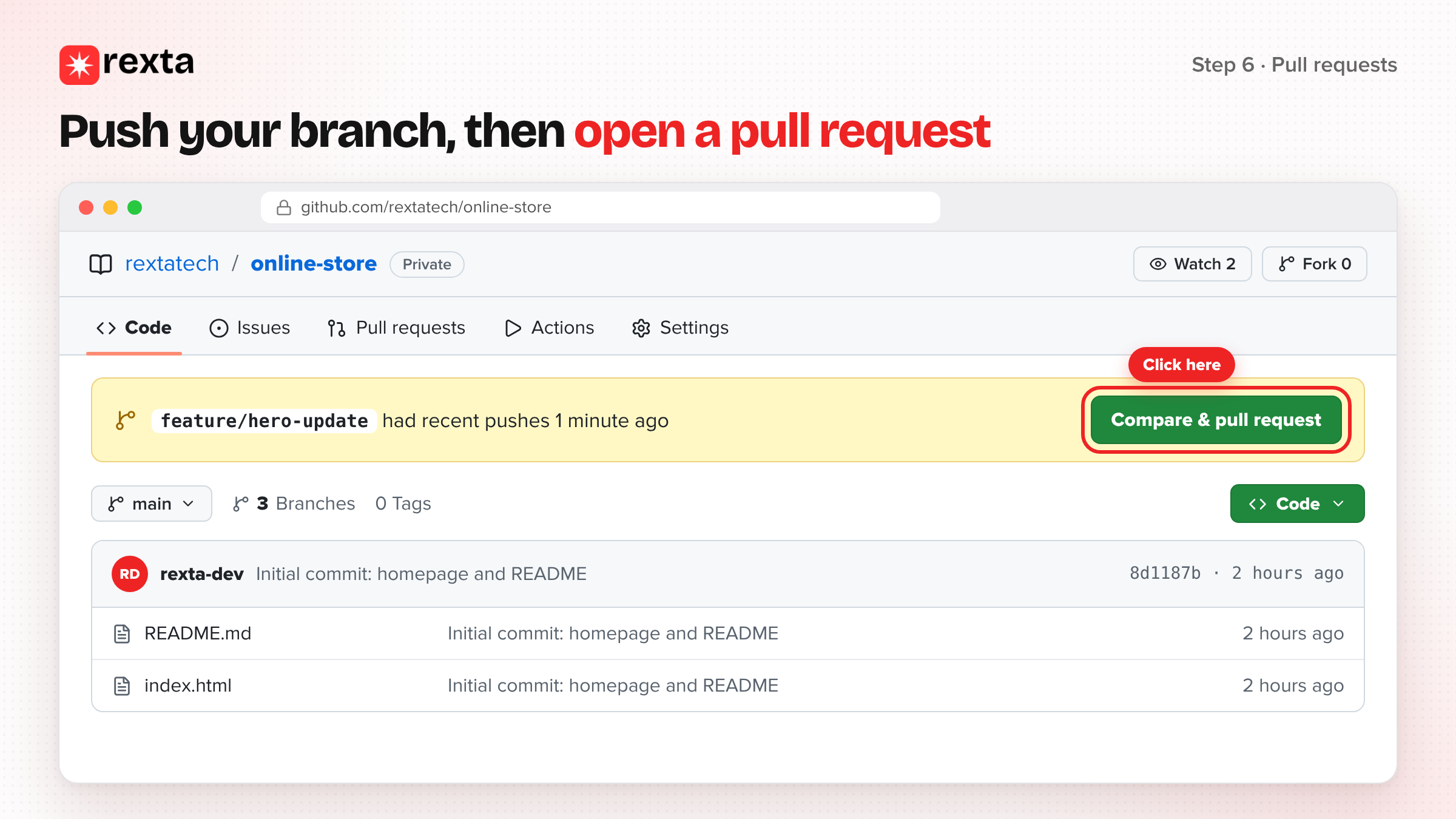
Step 6: Open and review a pull request
A pull request (PR) is a request to merge your branch into main. It's where your team sees exactly what changed, discusses it and approves it before it goes live.
The homepage update is ready first, so a pull request is opened for it:
On GitHub, go to the repository. GitHub shows a banner for the recently pushed branch with a "Compare & pull request" button.
Set base to
mainand compare tofeature/hero-update.Write a clear title and description: what changed, why, and how to test it.
Request a review from a teammate and click Create pull request.
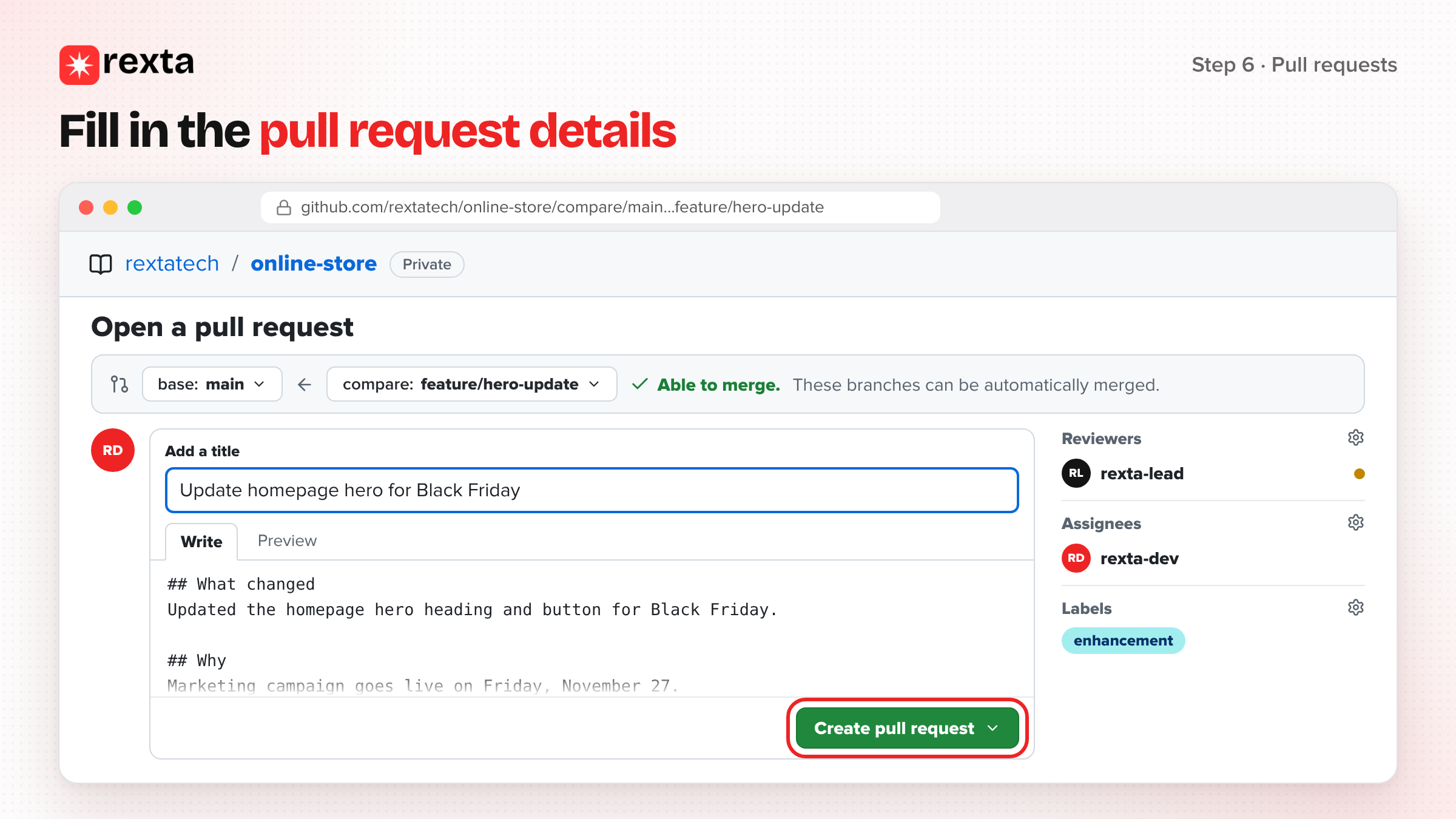
What a good PR description includes
## What changed
Updated the homepage hero heading and button for Black Friday.

## Why
Marketing campaign goes live on Friday, November 27.

## How to test
1. Open the homepage
2. Confirm the heading reads "Black Friday Deals Are Live"
3. Confirm the button reads "Shop the Sale"
Reviewing a pull request
The reviewer opens the Files changed tab and goes through the changes line by line. They can:
Comment on specific lines to ask questions or suggest changes
Approve the PR if it's ready
Request changes if something needs fixing first
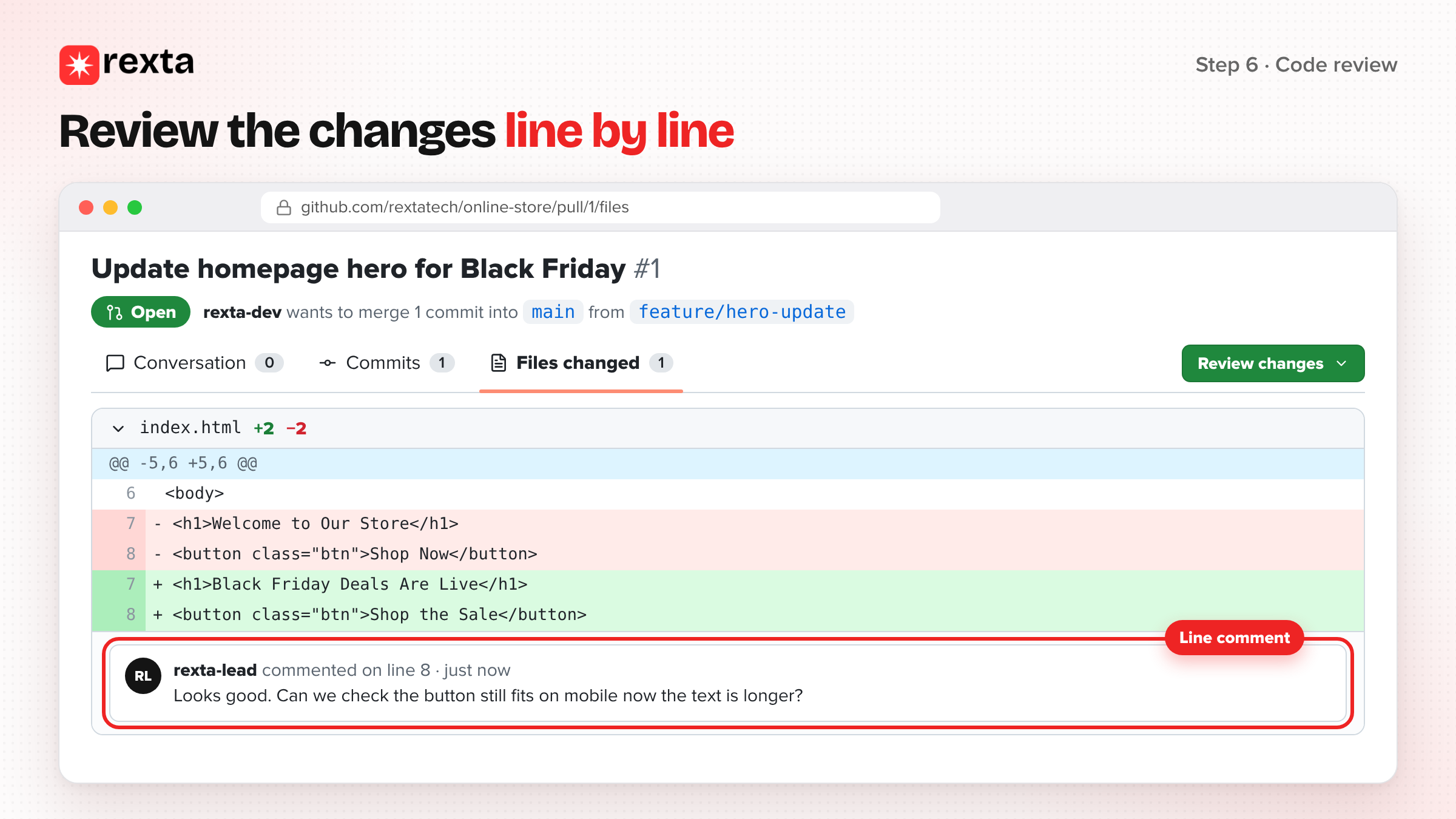
Good reviews are specific and kind. "This could break on mobile because the button is fixed-width" is useful. "This is wrong" isn't.
GitHub's pull request documentation covers every review option in detail.
Want to learn Git the way real teams use it?
Rexta Labs, our new training program, teaches Git, GitHub and team workflows through hands-on projects in its Full-Stack Development and Cloud & DevOps courses.
Explore CoursesStep 7: Merge the pull request
Once the pull request is approved, it's merged into main with the Merge pull request button on GitHub.
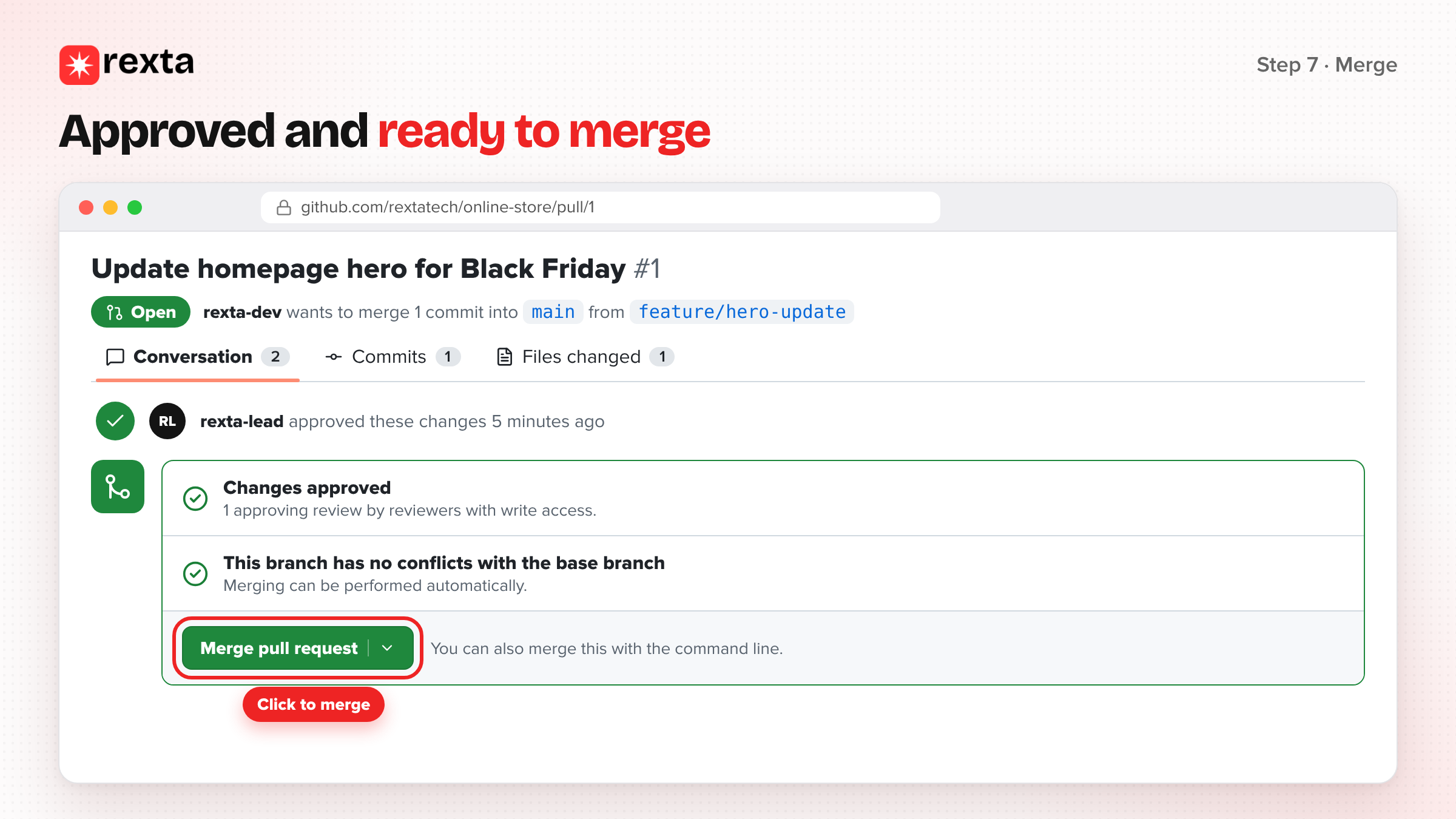
Here's what main looks like afterwards:
git log --oneline --graph
*   b9d0ab5 Merge pull request #1 from feature/hero-update
|\
| * 72486d3 Update homepage hero for Black Friday
|/
* 8d1187b Initial commit: homepage and README
You can read the story straight from the history: an initial commit, the homepage work on its own branch, and the merge that brought it into main.
After merging, it's good practice to delete the feature branch. Its work is safely in main now, and old branches just add clutter. GitHub offers a Delete branch button right after the merge.
Step 8: Reproduce and resolve a merge conflict
Now it's the cart page's turn, and this is where things get interesting.
The homepage update changed the button to "Shop the Sale". On the cart branch, you changed the same button to "View Cart". Neither change knew about the other.
Before opening your pull request, bring the latest main into your branch:
git switch main
git pull
Updating 8d1187b..b9d0ab5
Fast-forward
 index.html | 4 ++--
 1 file changed, 2 insertions(+), 2 deletions(-)
git switch feature/cart-page
git merge main
Auto-merging index.html
CONFLICT (content): Merge conflict in index.html
Automatic merge failed; fix conflicts and then commit the result.
There it is: a merge conflict.
This isn't an error, and nothing is broken. Git is simply saying: "Two people changed the same lines differently, and I won't guess which one is right. You decide."
git status
On branch feature/cart-page
You have unmerged paths.
  (fix conflicts and run "git commit")
  (use "git merge --abort" to abort the merge)

Unmerged paths:
  (use "git add <file>..." to mark resolution)
	both modified:   index.html
Reading the conflict
Open index.html, and you'll see Git has marked the conflicting section:
<body>
<<<<<<< HEAD
    <h1>Welcome to Our Store</h1>
    <button class="btn">View Cart</button>
=======
    <h1>Black Friday Deals Are Live</h1>
    <button class="btn">Shop the Sale</button>
>>>>>>> main
</body>
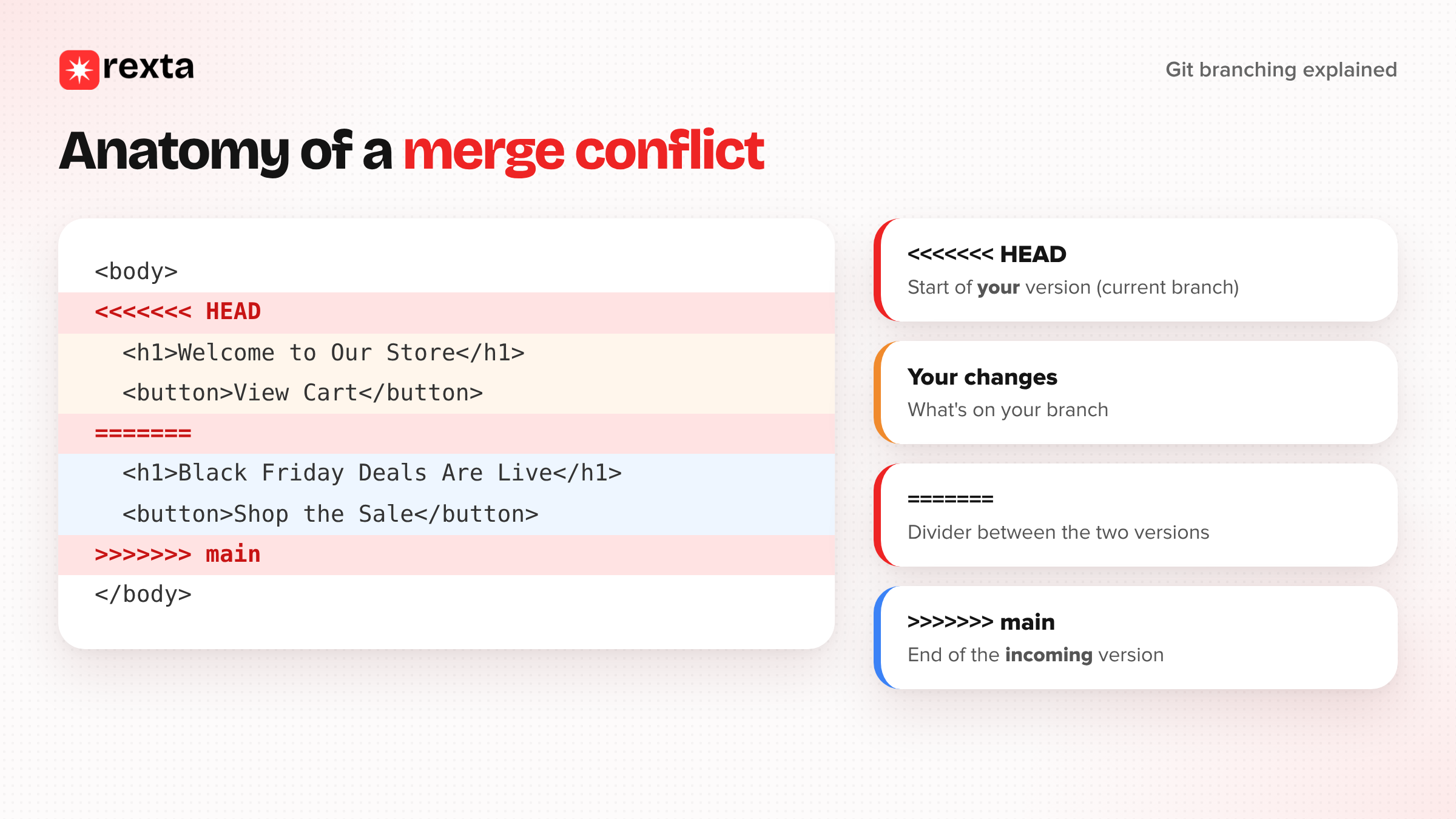
Everything between
<<<<<<< HEADand=======is your version (your current branch).Everything between
=======and>>>>>>> mainis the incoming version frommain.
Resolving it
Resolving a conflict means deciding what the final code should be. Sometimes you keep one side. Often, like here, the right answer is to combine both.
If you're unsure, talk to whoever made the other change. In this case, the right outcome is to keep the Black Friday heading and button, and add the cart link as a separate button. Edit the file and remove all the conflict markers:
<body>
    <h1>Black Friday Deals Are Live</h1>
    <button class="btn">Shop the Sale</button>
    <a href="cart.html" class="btn-secondary">View Cart</a>
</body>
Then mark the conflict as resolved and complete the merge:
git add index.html
git commit --no-edit
[feature/cart-page 3eba51a] Merge branch 'main' into feature/cart-page
git push
To https://github.com/your-team/online-store.git
   123b5c3..3eba51a  feature/cart-page -> feature/cart-page
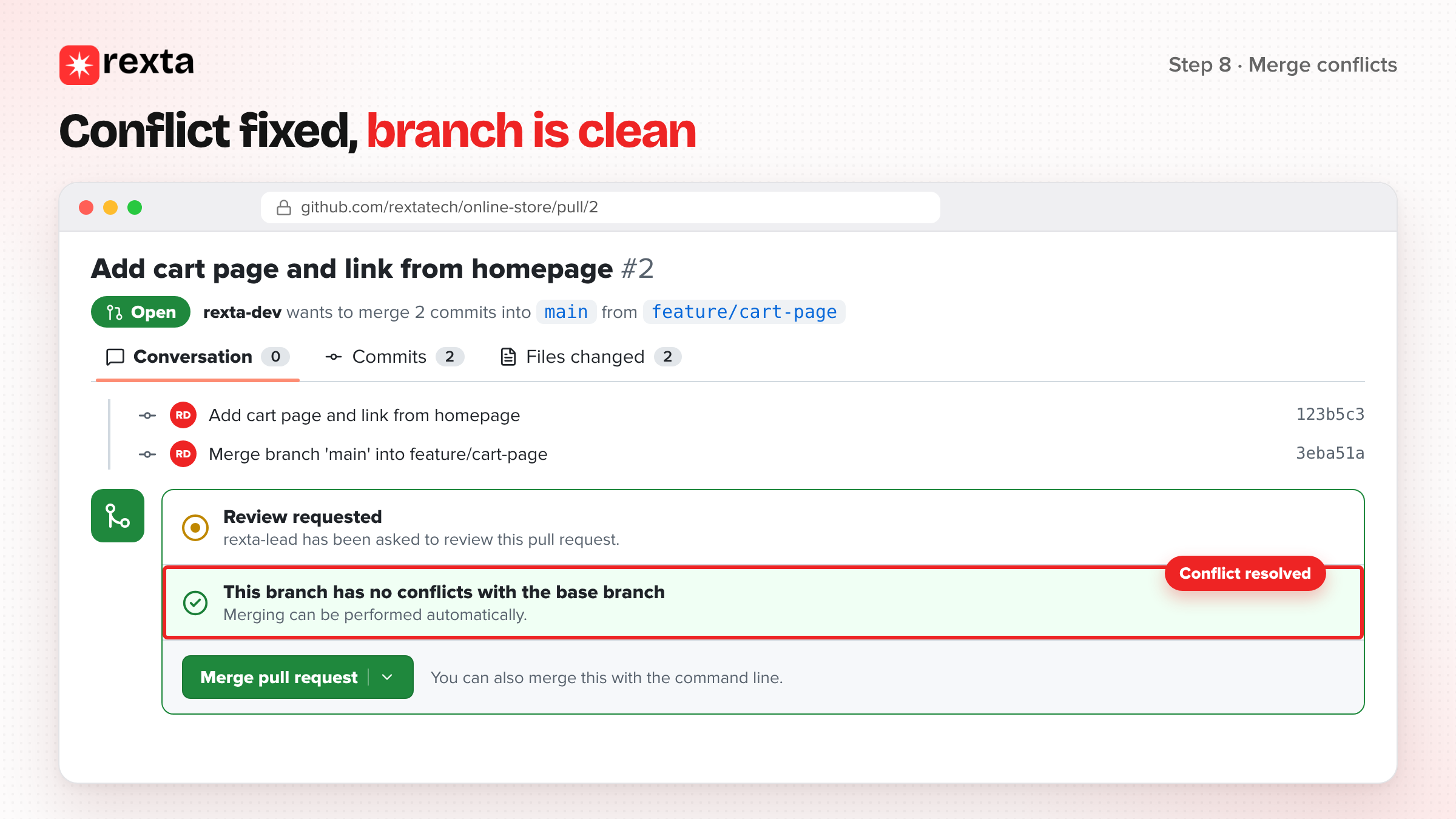
Your branch is now up to date with main and conflict-free. You open your pull request, it's reviewed, and it's merged as PR #2.
Tip: If a merge goes badly and you want to start over,
git merge --aborttakes you back to exactly where you were before the merge began.
Most code editors, including VS Code, highlight conflicts and give you one-click options such as Accept Current, Accept Incoming or Accept Both. These are helpful, but always read the final result before committing. "Accept Both" can produce code that technically merges but doesn't work.
Step 9: Merge vs rebase
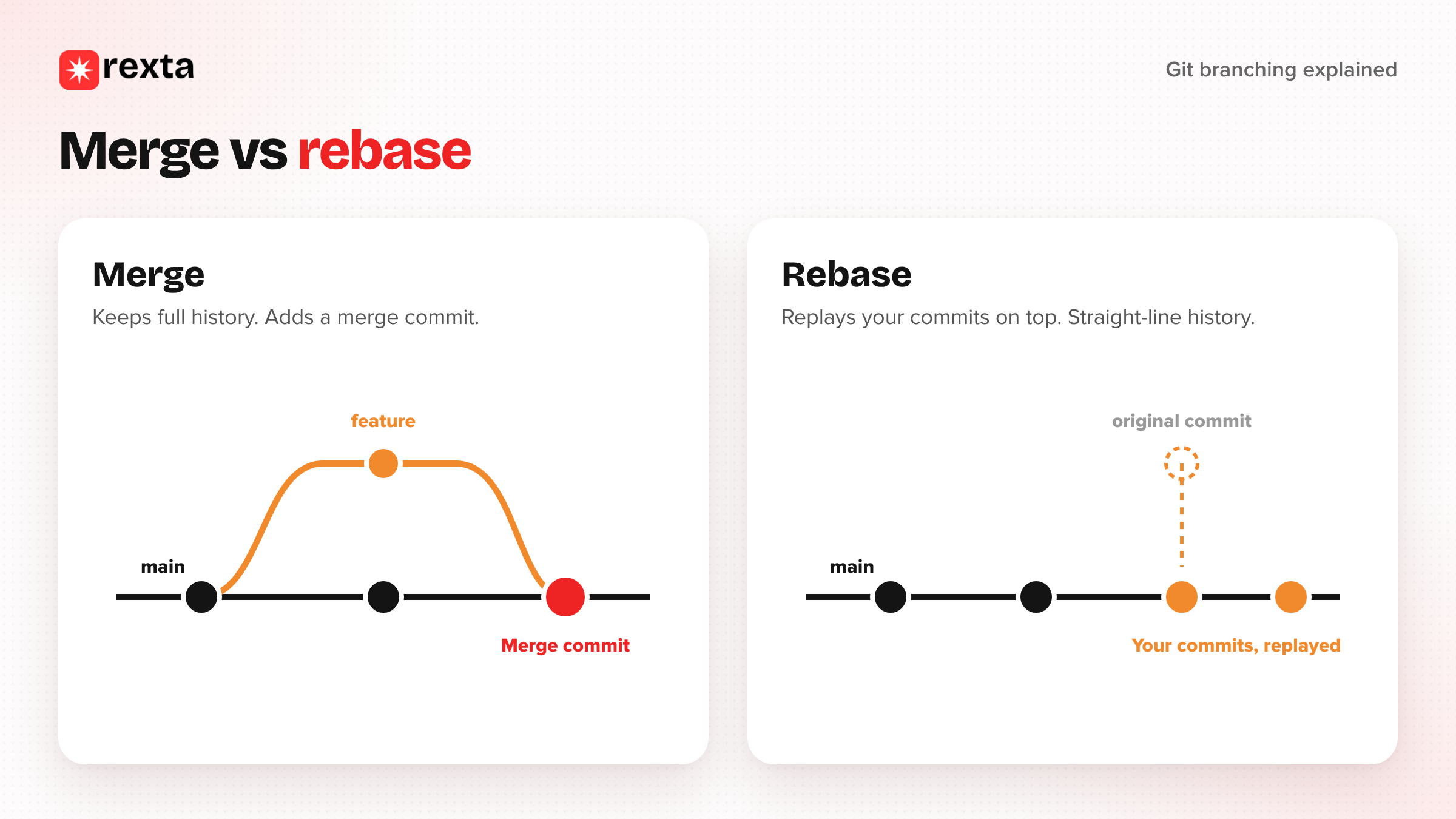
In the last step, you used merge to bring main into your branch. There's another way to do it: rebase. Both get the latest changes into your branch, but they produce very different histories.
Merge
Merge combines the two histories and adds a new merge commit that ties them together. Here's the cart branch after merging:
*   3eba51a Merge branch 'main' into feature/cart-page
|\
| *   b9d0ab5 Merge pull request #1 from feature/hero-update
| |\
| | * 72486d3 Update homepage hero for Black Friday
| |/
* / 123b5c3 Add cart page and link from homepage
|/
* 8d1187b Initial commit: homepage and README
It's accurate, it shows exactly what happened and when, and it never rewrites existing commits. But on a busy team, all those merge commits make the history harder to read.
Rebase
Rebase takes your commits and replays them on top of the latest main, as if you'd started your work from there. Let's rewind and try it on the same situation:
git rebase main
CONFLICT (content): Merge conflict in index.html
error: could not apply 123b5c3... Add cart page and link from homepage
hint: Resolve all conflicts manually, mark them as resolved with
hint: "git add/rm <conflicted_files>", then run "git rebase --continue".
Same conflict, same fix. Resolve index.html exactly as before, then continue:
git add index.html
git rebase --continue
Successfully rebased and updated refs/heads/feature/cart-page.
Now look at the history:
* a102cd6 Add cart page and link from homepage
*   b9d0ab5 Merge pull request #1 from feature/hero-update
|\
| * 72486d3 Update homepage hero for Black Friday
|/
* 8d1187b Initial commit: homepage and README
No extra merge commit. The cart work sits neatly on top of main in a straight line.
Notice that the commit has a new ID: it was 123b5c3, and now it's a102cd6. That's because rebase doesn't move your commits. It recreates them. And that leads to the most important rule.
The golden rule of rebasing
Never rebase a branch that other people are working on.
Rebase rewrites history. If a teammate has already pulled your branch and you rebase it, their copy and yours no longer match, which causes confusion and lost work.
If you rebase a branch you've already pushed (even if only you use it), you'll need to force-push. Use the safer version:
git push --force-with-lease
This refuses to overwrite the remote branch if someone else has pushed to it since you last pulled.
So which should your team use?
Merge | Rebase | |
|---|---|---|
History | Full, includes merge commits | Clean, straight line |
Rewrites commits | No | Yes |
Safe on shared branches | Yes | No |
Best for | Shared branches, beginners, preserving context | Tidying up your own branch before a PR |
A common, practical approach: rebase your own feature branch to keep it tidy and current, and merge pull requests into main. Whatever you choose, agree on it as a team and be consistent.
Atlassian's guide to merging vs rebasing goes deeper if you want more detail.
Team rules that make branching work
Branching is a tool. These habits are what make it work for a team:
Protect
main. On GitHub, set up branch protection rules so nobody can push directly tomainand every change needs an approved pull request. This alone prevents most of the problems this guide started with.Keep branches short-lived. The longer a branch lives, the further it drifts from
mainand the bigger the conflicts get.Pull from
mainoften. Bring in the latest changes regularly, not just before merging.Keep pull requests small. A 50-line PR gets a careful review. A 2,000-line PR gets a quick "looks good to me".
Review every change. A second pair of eyes catches bugs, spreads knowledge and keeps the codebase consistent.
Delete merged branches. Keep the repository clean.
Need an engineering team that works this way?
We build software with structured workflows, code reviews and clean version control from day one.
Get StartedFinal thoughts
When two developers overwrite each other's work, the problem is rarely carelessness. It's the lack of a workflow that lets more than one person work on the same codebase at the same time.
With branching, everyone works in their own space. Pull requests give the team a chance to review before anything reaches main. And when work does collide, a merge conflict isn't a disaster. It's Git asking a simple question that a human should answer.
That's what makes Git so powerful on a team. It's not just about saving your code. It's about giving everyone a safe, structured way to build together.
If you're thinking about how modern teams plan and ship software more broadly, read our piece on the SDLC in the AI era. And if you're about to start a new product, Your MVP Should Embarrass You a Little is a good next read. For the full reference on Git itself, the free Pro Git book is the best place to go.
Frequently Asked Questions
What is a branch in Git?
A branch is an independent line of development. It lets you work on a feature or fix without affecting the main codebase. Technically, it's a lightweight pointer to a commit, which is why creating branches in Git is fast and cheap.
What's the difference between Git and GitHub?
Git is the version control tool that runs on your computer and tracks changes to your code. GitHub is an online platform that hosts Git repositories and adds collaboration features like pull requests, code review and issue tracking.
What is a pull request?
A pull request is a request to merge changes from one branch into another, usually into main. It gives teammates a place to review the changes, leave comments and approve them before they're merged.
What causes a merge conflict?
A merge conflict happens when two branches change the same lines of the same file in different ways, or when one branch deletes a file that another branch modified. Git can't decide which version is correct, so it asks you to resolve it.
How do I avoid merge conflicts?
You can't avoid them completely, but you can make them rare and small: pull from main often, keep branches short-lived, keep pull requests small, and communicate with teammates working on the same files.
Should I use merge or rebase?
Use merge when working on shared branches or when you want to preserve the full history. Use rebase to keep your own feature branch tidy and up to date before opening a pull request. Never rebase a branch that others are working on.
What's the difference between git switch and git checkout?
Both can change branches. git checkout is older and also restores files, which can be confusing. git switch was introduced specifically for switching branches, so it's clearer and safer for that job.
What does git push --force-with-lease do?
It force-pushes your branch, which is needed after a rebase, but only if nobody else has pushed to that branch since you last pulled. It's a much safer alternative to git push --force.
How should we name branches?
Use a short prefix that describes the type of work, followed by a clear description: feature/cart-page, fix/checkout-total, docs/setup-guide. Consistent naming makes it easy for the whole team to understand what each branch is for.
Reactions
Stay in the loop
Get notified when we publish a new blog post. No spam, just insights and updates from the Rexta Technologies team.
Related Posts
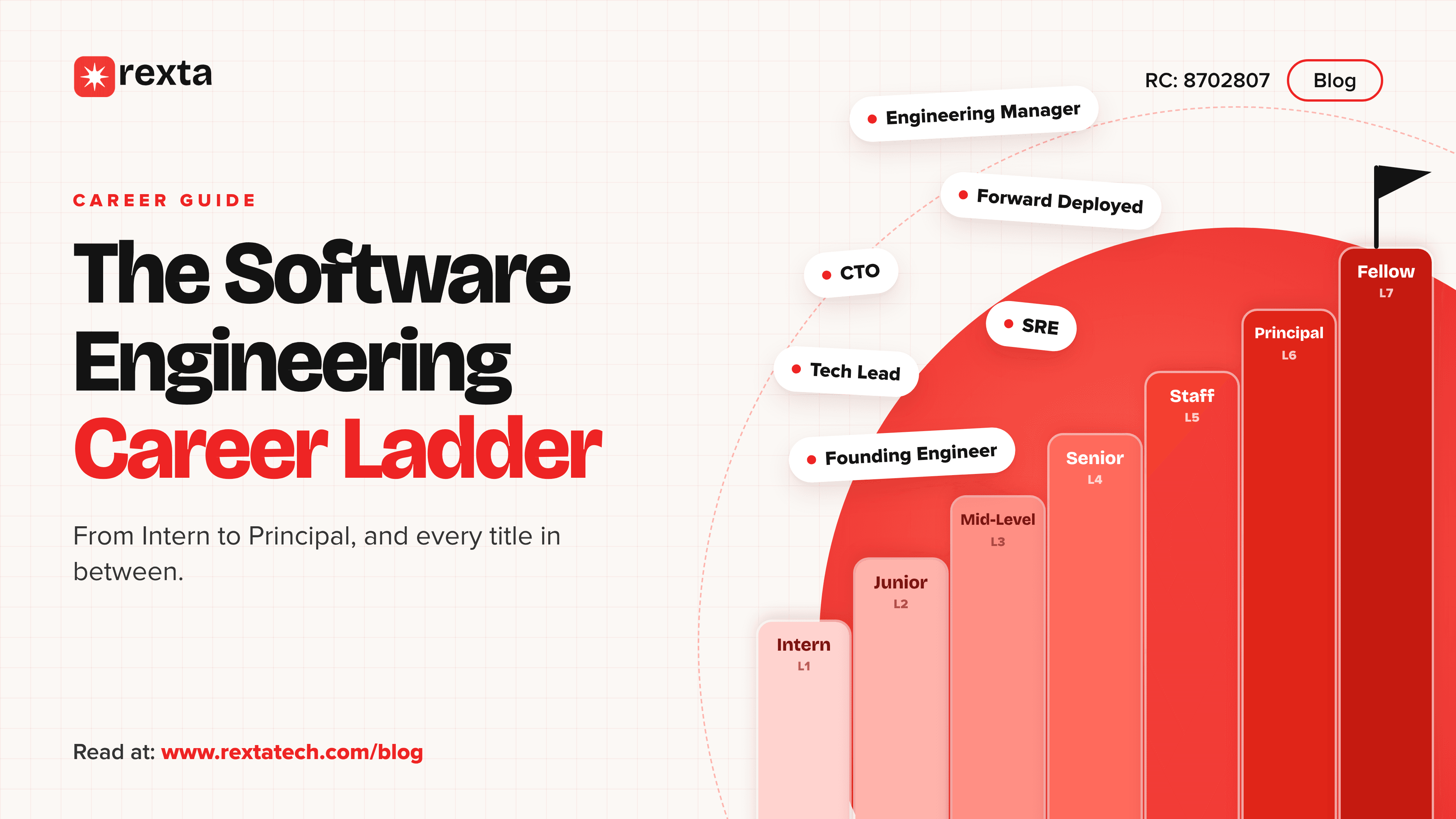
The Software Engineering Career Ladder
Junior, Senior, Staff, Principal, CTO. Software engineering titles can be confusing. Here's what each level really means, how the career ladder works, and the roles you'll meet along the way.
25 Nov 2026
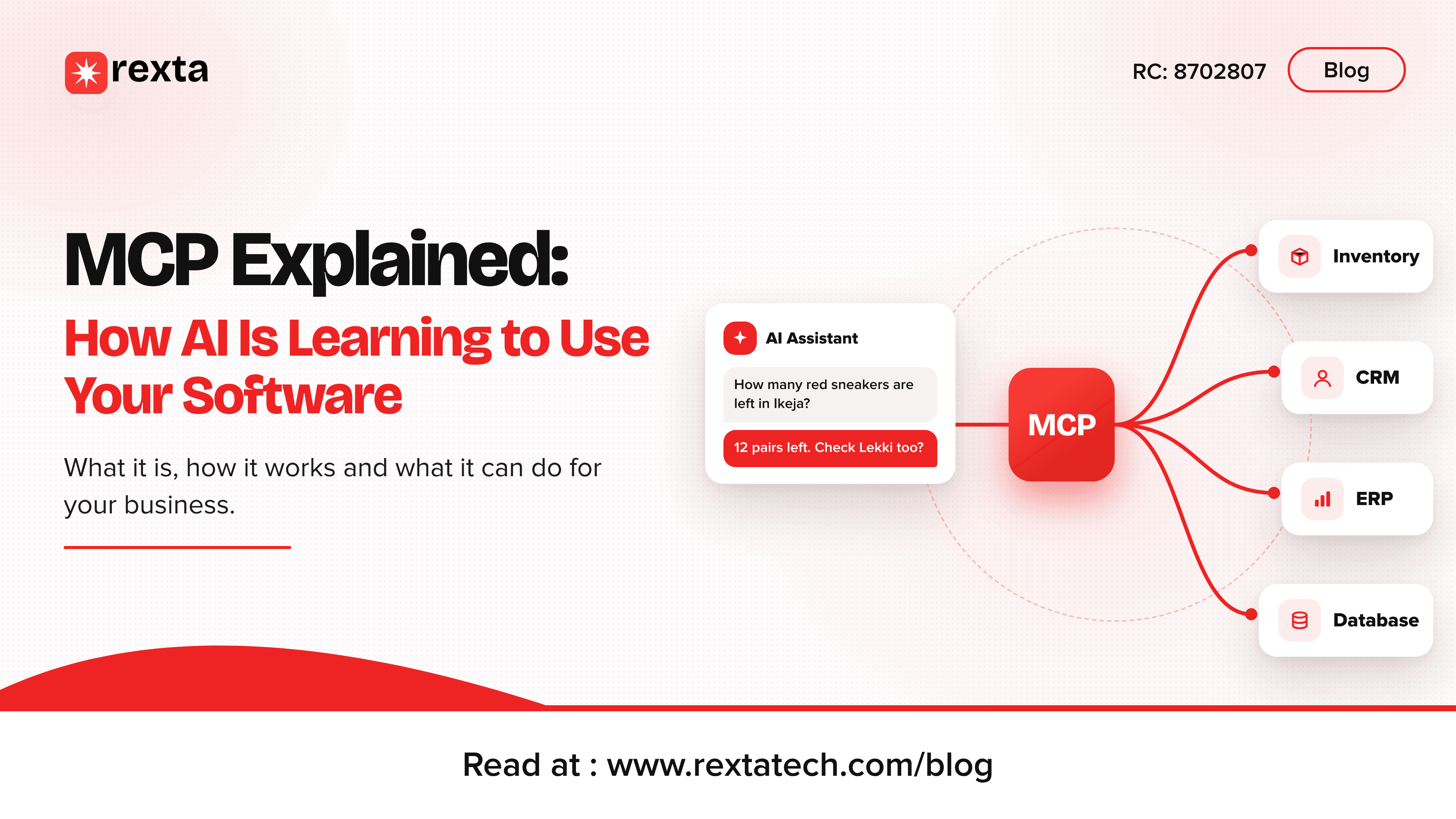
MCP Explained: How AI Is Learning to Use Your Software
AI assistants are smart, but most of them can't see your business. MCP is the open standard changing that. Here's what it is, how it works, and what it could do for your business.
23 Nov 2026

Is Your Website Ready for Black Friday?
Black Friday can bring more visitors and potential customers to your website. Use this practical checklist to review your website's speed, mobile experience, checkout, security, and readiness for increased traffic.
23 Nov 2026

ERP for Business Efficiency: What It Does and How to Choose the Right One
Discover how ERP systems connect business operations, reduce manual work, and improve efficiency. Learn what to look for when choosing between an off-the-shelf, customized, or bespoke ERP solution.
16 Nov 2026